
Embed checkout on your website
Share the hosted checkout link anywhere, or copy the product-specific embed code and place the checkout button on your own page.
Embedding is the moment Zwely moves from setup into your real sales page. The code adds the checkout launcher to your site and tells Zwely which product to open when someone clicks.
Most site builders have a custom HTML or embed block. Use that kind of block instead of a normal text editor, because rich text editors often remove scripts.
Before you start
- Finish the product details, delivery setup, and button styling first.
- Have access to edit the page where the button belongs.
Put checkout on your page
-
01
Confirm the product is ready
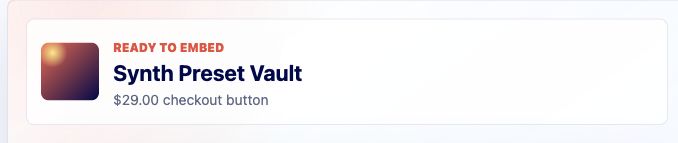
The embed step summarizes whether the product has the pieces buyers need: clear product details, delivery setup, checkout styling, and payment readiness when the product is paid.
-
02
Copy the full embed code
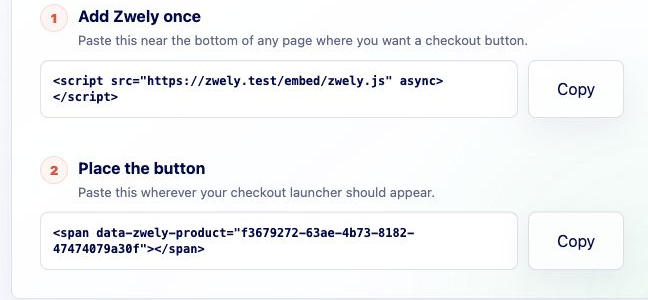
Copy the complete code block for this product. It includes the product-specific identifier that tells Zwely which checkout modal to open.
-
03
Paste it into an HTML or custom-code block
Add the code where the button should appear. If your site builder has both “text” and “embed” blocks, choose the embed/custom HTML option.
-
04
Publish and click the button
Test on the published page, not just inside a builder preview. Confirm the modal opens, the product name is right, and the price or free claim flow matches your expectation.
Good to know
- Each product has its own embed code. Do not reuse one product code for another product page.