
Understand customer delivery emails
Preview the email buyers receive after checkout and make sure it matches what they bought.
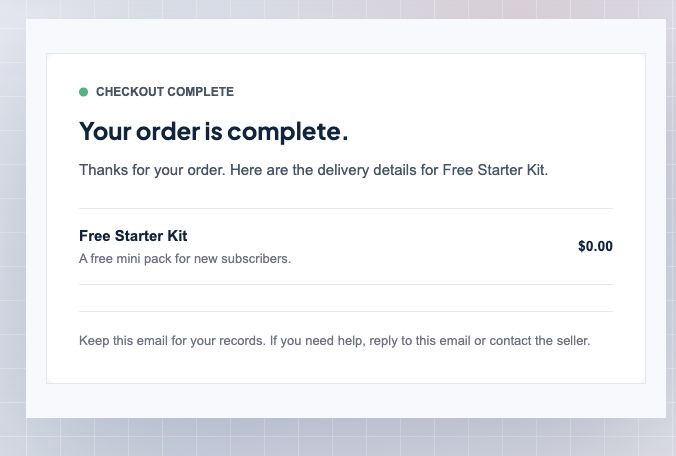
The delivery email is one of the most important trust moments in the whole flow. The buyer has just paid or claimed a product, and they want to know exactly what to do next.
Zwely builds the email from the product setup. If the product has a file, buyers see a download button. If it has a license key, buyers see their assigned key. If it has both, the email can include both without you writing separate templates by hand.
Before you start
- Create at least one product with a file, license key, or access details.
- Leave checkout emails enabled unless another system handles delivery.
Preview what buyers receive
-
01
Switch between products
Use the product selector above the preview. The email changes instantly, which lets you inspect each product without sending test messages to yourself.

-
02
Read the actual delivery content
The preview only shows sections that apply to the selected product: download buttons for files, license details for license products, and product-specific checkout details.
-
03
Check the buyer promise
If the email mentions a download limit or expiration window, make sure those settings match what you want buyers to understand. Clear expectations reduce support questions.
-
04
Use the preview before launches
Before a promotion or release, review the delivery email for that product. It is a simple way to catch stale copy, missing files, or confusing license wording.
Good to know
- If you upload a logo, it appears at the top of the email. If no logo is uploaded, Zwely omits that area entirely.