
Add or generate license keys
Prepare license inventory so Zwely can assign a unique key when someone checks out.
License keys are best for products where the buyer needs an activation code, serial, registration key, or entitlement. Zwely can either use keys you paste in or generate a pool for you.
Think of the key pool like inventory. As buyers check out, available keys are assigned one by one. Keeping a healthy pool prevents launch-day friction. Bundles do not have their own license-key pool; they assign keys from any included products that require keys.
Before you start
- Use license keys for software, plugins, presets, apps, or gated access.
- Decide whether you want to paste your own keys or let Zwely generate them.
- For bundles, add keys to the included products that need them before selling the bundle.
Prepare license delivery
-
01
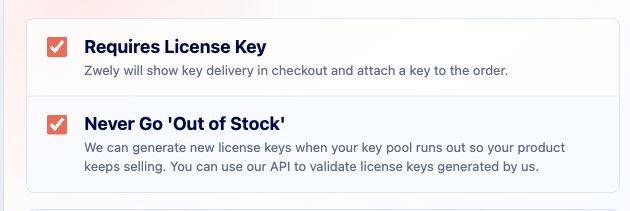
Turn on license delivery for the product
Enable license keys when the buyer should receive a code after checkout. If the product is only a download, leave this off and keep the email simpler.
-
02
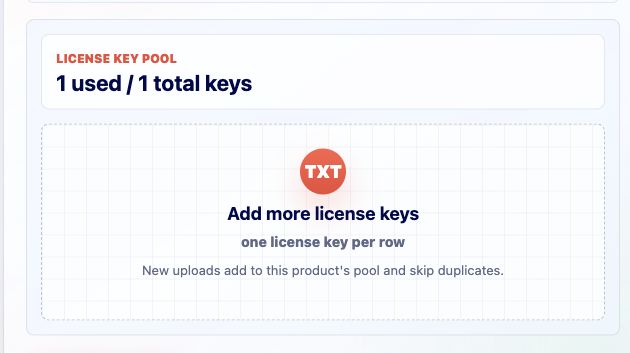
Add enough available keys
Paste existing keys or generate a batch inside Zwely. Each completed checkout claims one unused key, so add more than you expect to sell during a launch or promo.
-
03
Treat license keys as inventory
Before sending traffic to a software product, check that you have enough unused keys. Running out is avoidable, and it is much easier to prevent than to explain to a buyer.
-
04
Use validation for activation
If your app needs to verify keys later, create a product-scoped validation token and call the license validation API. That lets your software check the key without exposing a full account API key.
Good to know
- Assigned license keys appear in delivery emails and order/customer records.
- When a bundle contains multiple license-key products, checkout can show and email multiple keys, one for each included product that needs one.