
Customize email delivery settings
Set the branding, reply address, download limits, and sending behavior for checkout delivery emails.
These settings decide how delivery emails feel to your customers. The default setup works for most merchants, but a logo, recognizable reply-to address, and clear download limits can make the email feel more like it came from your business.
Everything on this page auto-saves after valid changes, so you can make small adjustments and watch the preview update without hunting for a save button.
Before you start
- Have a small logo file ready if you want branding in emails.
- Choose the inbox that should receive buyer replies.
Tune the delivery email
-
01
Upload or remove your logo
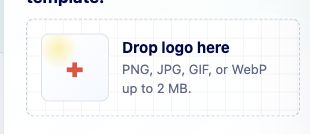
Drop a PNG, JPG, GIF, or WebP logo into the uploader. The preview updates right away. If you later decide the email looks cleaner without a logo, use Remove and Zwely will omit the logo area entirely.
-
02
Decide whether Zwely sends delivery emails
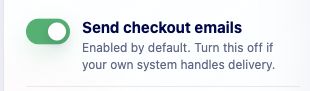
Most merchants should leave checkout emails on, because this is how buyers receive their downloads and keys automatically. Turn it off only when another system is already handling delivery.
-
03
Set reply-to details
Use a sender name and email buyers will recognize. Replies go to this address, so it can be a support inbox even if your account login email is different.
-
04
Choose download limits
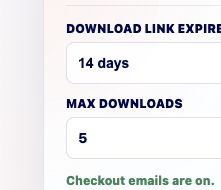
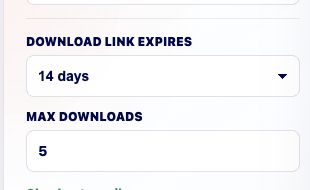
Pick the signed-link expiration window and max download count. The preview text updates with those values, so buyers see the same rules you configured.
Good to know
- Email settings auto-save after valid changes, so there is no save button on this page.